Most software engineers use Git every single day.
And most of us use about five commands.
That’s not a problem—until something goes wrong.
A bad merge.
A force-push to the wrong branch.
A commit that disappeared.
A release blocked because history is messy.
That’s when Git stops being a tool and becomes a test of experience.
This article isn’t about memorizing Git commands. It’s about understanding Git well enough to stay calm when things break. These are the Git commands real engineers rely on in day-to-day work and real production incidents.
Why Git Knowledge Matters More Than You Think
Git isn’t just version control.
It’s:
- a safety net,
- a debugging tool,
- a collaboration contract,
- and sometimes your last chance to recover lost work.
Senior engineers don’t use more Git commands than juniors.
They just know which command to use when it matters.
Core Git Commands (The Foundation)
These are the commands you must understand before touching anything advanced.
1. git init
Creates a new Git repository in the current directory.
git init
Used when starting a new project or turning an existing folder into a repository.
2. git clone
Downloads a remote repository along with its entire history.
git clone <repo-url>
This is how most work begins.
3. git status
Shows the current state of your working directory and staging area.
git status
Senior engineers run this constantly. It prevents mistakes before they happen.
4. git add
Stages files so they’re included in the next commit.
git add .
git add file.js
Staging is Git’s most misunderstood feature—and one of its most powerful.
5. git commit
Creates a snapshot of staged changes.
git commit -m "clear message"
Good commits make debugging and reviews easier months later.
6. git push
Uploads local commits to the remote repository.
git push origin main
This is where local mistakes become shared mistakes.
7. git pull
Fetches remote changes and merges them into your current branch.
git pull
Convenient, but dangerous when used blindly.
Branching: Where Most Teams Live
Branching is how teams work in parallel—and how conflicts are born.
8. git branch
Lists existing branches or creates a new one.
git branch
git branch feature-x
Branches are cheap. Use them.
9. git checkout
Switches branches or restores files.
git checkout feature-x
Also used to undo file-level changes, which surprises many people.
10. git switch
A newer, cleaner alternative to checkout for switching branches.
git switch main
Less confusing. Fewer footguns.
11. git merge
Combines changes from one branch into another.
git merge feature-x
This is where conflicts surface—and where discipline matters.
12. git log
Displays commit history.
git log --oneline --graph
Understanding history is critical before changing it.
Undoing Mistakes (This Is Where Experience Shows)
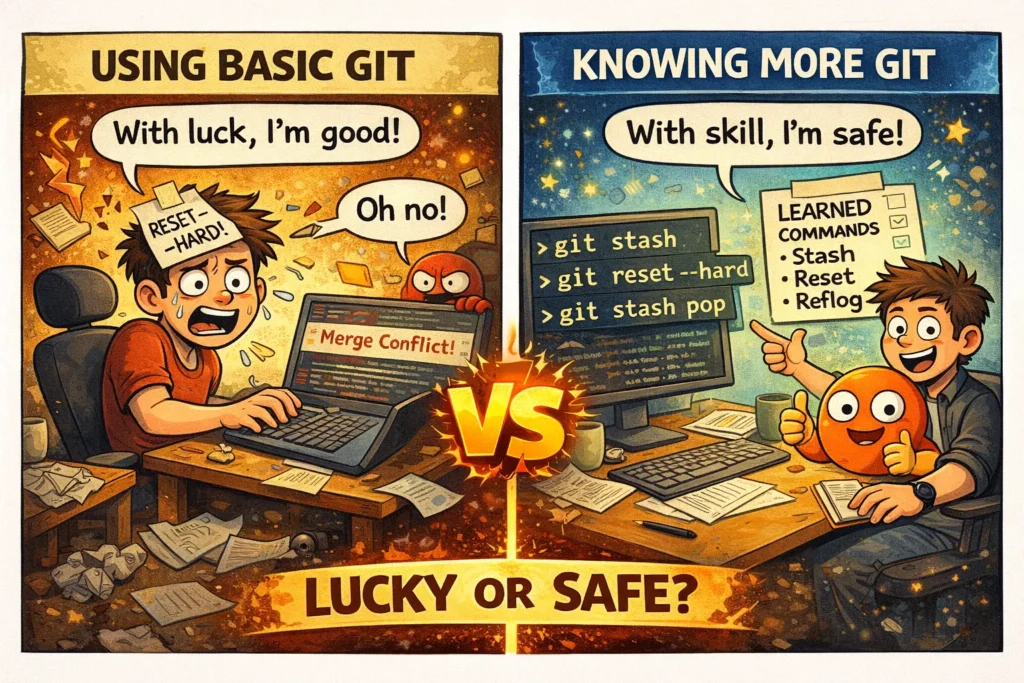
Mistakes are inevitable. Panic is optional.
13. git reset
Moves the branch pointer backward.
git reset --soft HEAD~1
git reset --hard HEAD~1
--soft: keeps changes staged--hard: deletes changes permanently
Senior engineers treat --hard with respect.
14. git revert
Creates a new commit that undoes a previous one.
git revert <commit-hash>
This is the safe way to undo changes in shared branches.
15. git checkout -- <file>
Discards local changes to a specific file.
git checkout -- index.js
Useful when you know exactly what you want to throw away.
Stashing: Context Switching Without Pain
16. git stash
Temporarily saves uncommitted changes.
git stash
git stash pop
Perfect when you need to switch branches quickly without committing half-done work.
17. git stash list
Shows all saved stashes.
git stash list
Stashes are easy to forget—this reminds you what’s hidden.
Working With Remotes (Control Beats Convenience)
18. git remote -v
Lists configured remote repositories.
git remote -v
Helpful when working with forks or multiple remotes.
19. git fetch
Downloads remote changes without merging.
git fetch
Senior engineers often prefer fetch over pull because it’s safer.
Inspecting Changes and History
20. git diff
Shows differences between commits, files, or stages.
git diff
git diff --staged
Always inspect changes before committing or merging.
21. git blame
Shows who last modified each line of a file.
git blame file.js
This is for understanding context, not blaming teammates.
22. git show
Displays detailed information about a specific commit.
git show <commit-hash>
Useful when reviewing changes or debugging regressions.
Cleanup and Recovery (Your Lifelines)
23. git clean
Removes untracked files.
git clean -fd
Dangerous but useful when your working directory is polluted.
24. git reflog
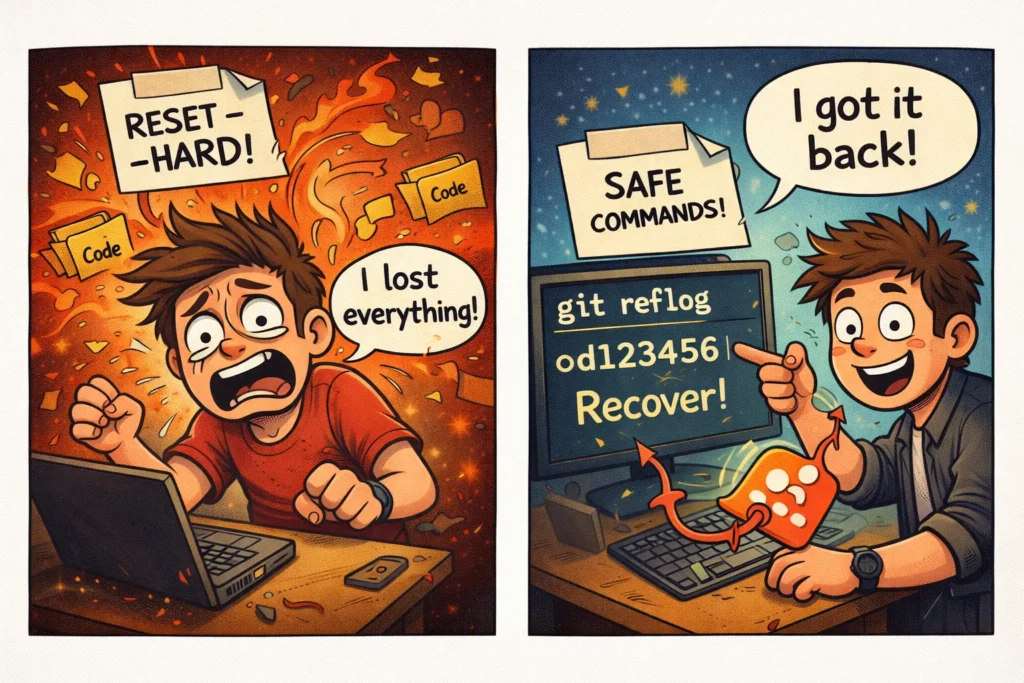
Shows every movement of HEAD, including deleted commits.
git reflog
This is your emergency recovery tool.
If you think something is lost—it’s probably here.
Real Production Scenarios Git Saves You From
Scenario 1: “I Lost My Commit”
Nine times out of ten, git reflog recovers it.
Scenario 2: “I Pulled and Everything Broke”
Use git log, identify the merge, and git revert.
Scenario 3: “I Need to Stop Mid-Task”
git stash prevents rushed commits.
Scenario 4: “Who Changed This?”
git blame provides context without guesswork.
Git Habits of Senior Engineers
Senior engineers:
- run
git statusconstantly, - avoid rewriting shared history,
- read commit history before changing it,
- prefer safe commands in team branches,
- use Git to understand systems, not just manage files.
Git isn’t about control—it’s about confidence.
Common Git Mistakes to Avoid
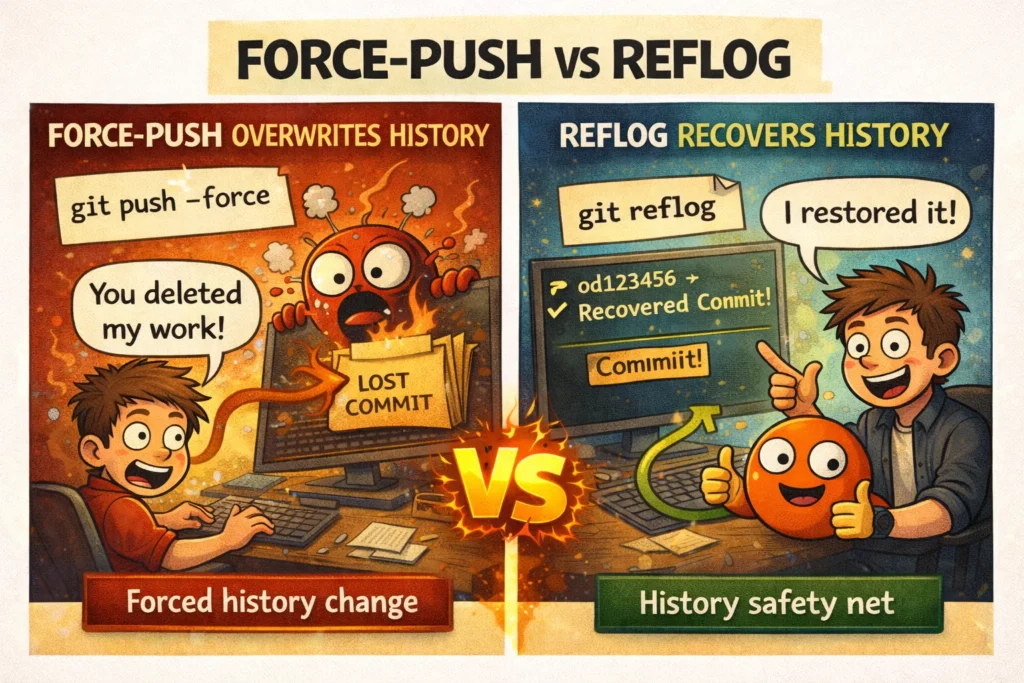
- Force-pushing to shared branches
- Using
reset --hardwithout understanding consequences - Pulling blindly instead of fetching first
- Squashing history without context
- Treating Git as “just a tool”
Git reflects how disciplined a team really is.
Final Thoughts
You don’t need to memorize Git commands.
You need to understand:
- how Git thinks,
- how history works,
- how to recover safely,
- how to collaborate without chaos.
If you master these commands, you’ll:
- debug faster,
- collaborate better,
- panic less during incidents,
- and earn trust as an engineer.
Git doesn’t make you a great engineer—but misusing Git can absolutely make you a liability.
For more backend, system design, and real-world engineering content like this,
check out my blog at nileshblog.tech 🚀